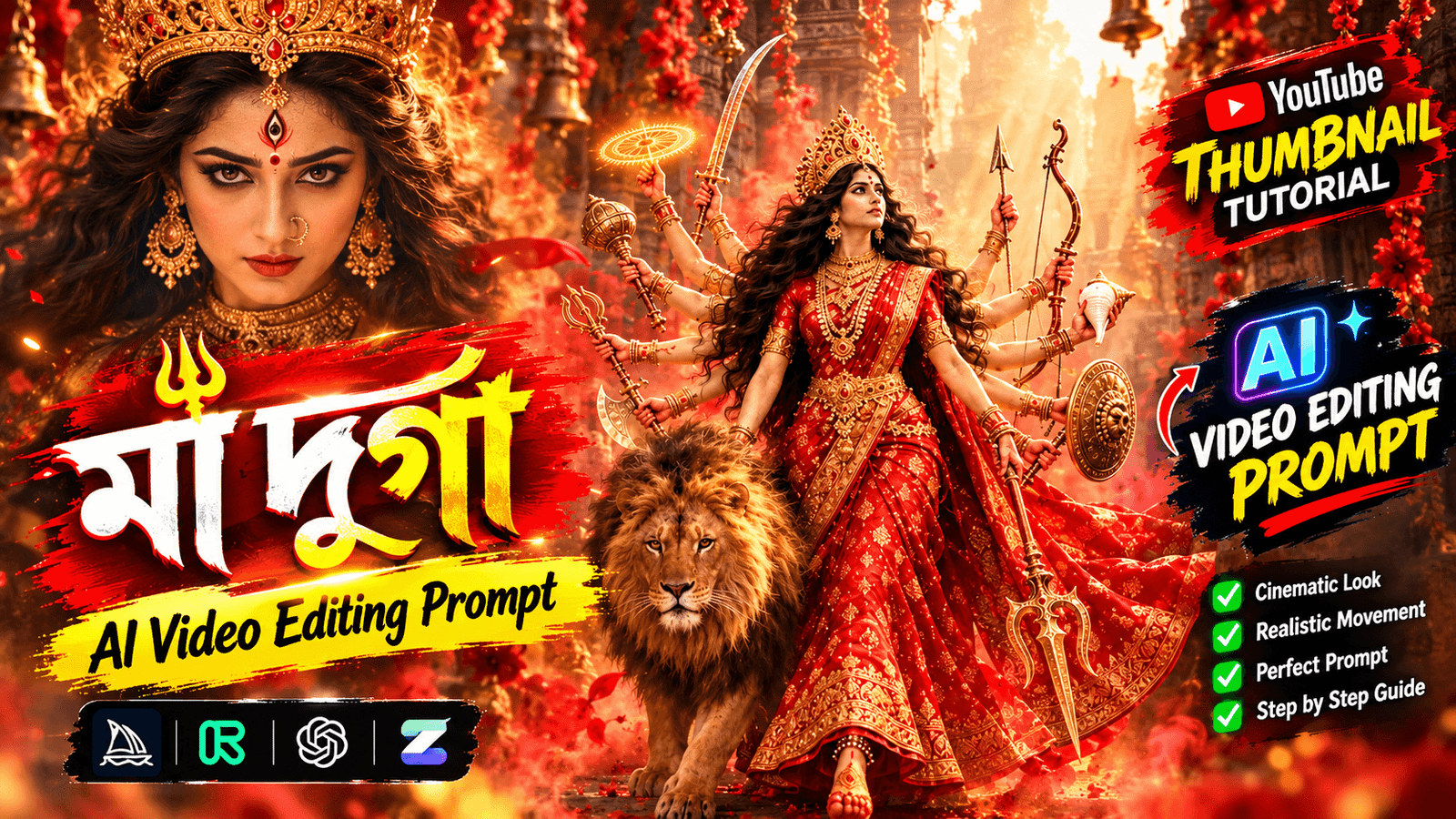
How to Make Maa Durga AI Video-A short while ago, I came across an AI-generated video of Goddess Durga on an Instagram page called ‘Sudharshan.Ai’. The video was so beautiful that I wasted no time in creating a tutorial for it. The video shows Goddess Durga, with her ten arms, walking alongside a lion—seemingly heading towards a temple. The woman featured in the video appears to be an ordinary person—much like you or me—who created this by combining her own photo with an AI video prompt. If you also wish to create a similar AI video for Durga Puja using your own photo, make sure to read this article to the very end. I will explain how to generate the video using AI prompts and recommend the best AI video tools available. Don’t miss out on this article if you want to know all the details.
How to Make Maa Durga AI Video
During Durga Puja, everyone posts status updates on WhatsApp or Instagram featuring their own photos. This time, you could try something different. Create an AI video for Durga Puja to share as your status—it’s sure to grab everyone’s attention. Many people charge a fee to create such AI videos, but by following the steps in this article, you can make one yourself. You will need just a few things: An AI video generator (I will be using ‘Flow’ here) A prompt describing what you want to show in the video A clear photo of yourself Follow the steps below to see exactly how to generate the video.
What You Need To Create Maa Durga AI Video ?
A few things need to be set in advance to make Maa Durga AI videos. Without these it is difficult to get good results. Before proceeding to the tutorial, know these:
- An AI video generator
First choose an AI video tool. There are many tools for making such videos. I always make videos with Flow, so I will use Flow here as well.
- A clear picture
If you want to show your face in the video, you need a clear picture taken from the front. Use your own photo or someone who has permission.
- Video prompt
What will Maa Durga look like, how will the temple be decorated, these are the prompts to write. Below I have given a full prompt. Copy it and use it. Do not change any part of the prompt, or the video may look different.
- Music and editing apps
After the video is generated add a song for the final look. Can use CapCut or VN app for editing. Choose songs from the app’s own music library to avoid copyright issues.
Having these things prepared in advance will reduce the problems while making the video.
How to Generate Maa Durga AI Video Using Flow Ai?
Before creating the video, have everything mentioned earlier—specifically the prompt and a clear photo of yours—ready.
- Click the link below; Google Flow will open.
- Click on the “New Project” option.
- Click the plus (+) icon to add your photo.
- Once the photo is added, paste the prompt.
- You will see video generation settings on the side; click on them.
- Select these options: Video, Ingredients, 9:16 Ratio, [Model Name], 720p Quality, 10 Seconds.
- Click the “Generate” button.
- Wait a moment; the video will be generated.
- Open and play the video to check if the video of Goddess Durga has been generated correctly. If you like it, save or download it.
By following these steps, you can easily generate the video.
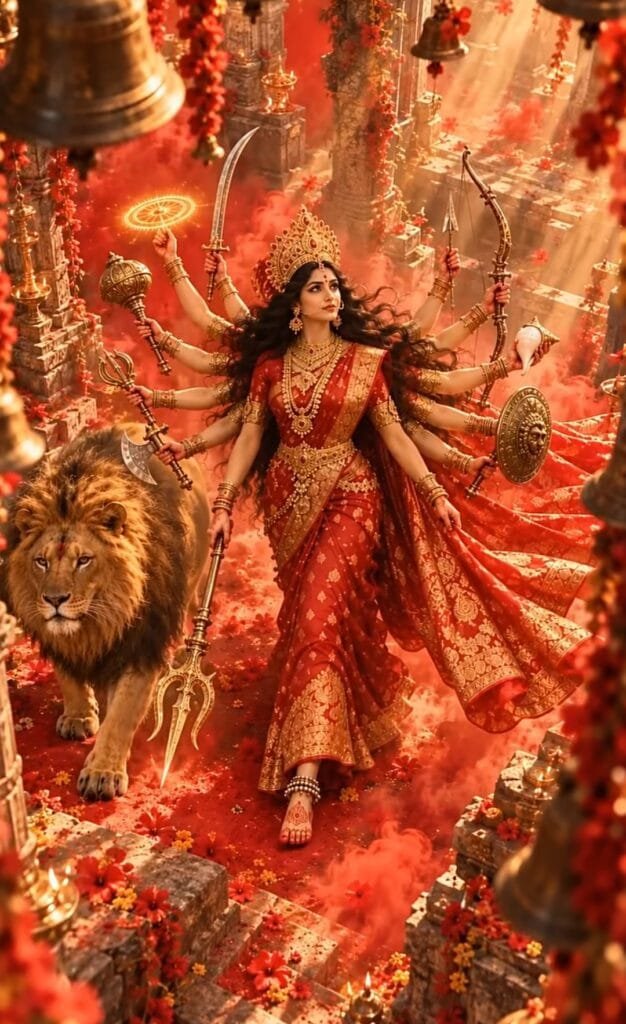
Vertical cinematic video of a
majestic mythological procession
sequence. The video opens with a
close-up shot of the ornate,
bejeweled feet and silver anklets
of a divine female figure adorned
in a rich red and gold silk saree,
holding a golden trident (trishul)
as she walks barefoot across a
path covered in vibrant red powder,
marigold flowers, and glowing fiery
footprints left in her wake. As
the camera smoothly tracks backward
and pans up, the scene reveals
Goddess Durga in her divine multi-armed
form, fully adorned with golden jewelry,
a radiant crown, and glowing auras, walking regally down temple steps accompanied by a majestic tiger pacing by her side amidst cascading flower petals and falling crimson powder. The lighting is warm, divine, and ethereal, with a glowing sunrise aesthetic casting dramatic highlights and a rich, vibrant red and gold color palette. The camera movement is fluid, steady, and continuous from the macro foot close-up to the grand wide reveal. Ultra HD, 8k resolution, cinematic quality, masterpiece, highly detailed, vertical video format, --ar 9:16
Final Touch: Edit Your Maa Durga AI Video in CapCut
To give the video its final look, you need to edit it using an editing app. I will be using CapCut here.
First, download the CapCut app. Then, import the saved video into the app. Click on the ‘Audio’ or ‘Add Music’ option and select a song of your choice. To avoid copyright issues, choose a track from CapCut’s built-in music library. Mute any background music or sound present in the original video. You can add effects or animations that sync with the beat of the music. Click on the ‘Adjust’ option to apply some light color grading. Keep the colors soft and bright; avoid using overly harsh filters. Once everything looks good, click the ‘Export’ button to save the video. You can set the resolution to 1080p and the frame rate to 30fps.
Overall
If you want to post something unique for this Durga Puja, why not try creating an AI video of Goddess Durga? You don’t need much to make it—just an AI video generator, a clear image, a prompt, and the CapCut app for editing. Don’t forget to let me know in the comments what you thought of this article. Visit my page Ishan Tech Zone for more AI video tutorials like this.

[…] Durga Puja Prompt […]