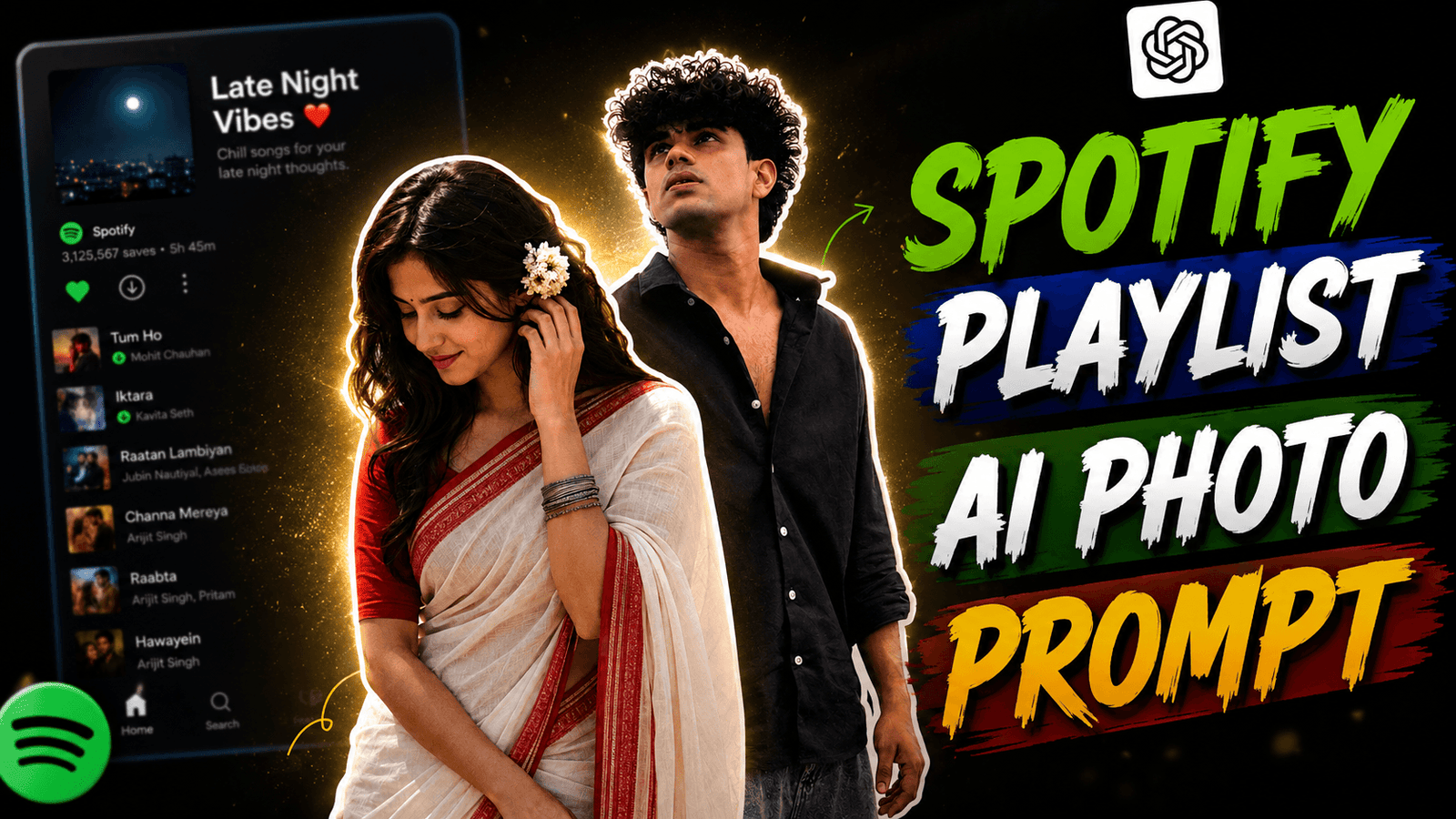
Spotify Playlist Background AI Photo Editing Prompt –There are many of us who listen to music on Spotify. But do you know that a photo from this Spotify is going very viral on Instagram. Where everyone is seeing photos of models on Spotify and playlists. These photos look aesthetic and cinematic. These photos are going viral, many people still don’t know that this is a completely new trend. Ever since AI photo editing came, every day some or the other photo is going viral. You can create such photos manually or you can also take the help of AI. If you do this, your photo will be given a saree which will look very good. And if you edit it manually, your sem dress will remain unchanged. I will tell you two ways to create the photo, you follow those steps and generate the photo.
Spotify Playlist Background AI Photo Editing Prompt
Let me tell you a little about this photo, how this photo looks and what is in this photo. This photo background Spotify Playlist screenshot has been used which has been slightly blurred and added. The name of this playlist is Late Night Vibes, it is written in big letters on the top. And below it, some song names are written like Dharo Tum Ho, Ik Tara and many more songs are mentioned. And in front of this photo, there is a model wearing a saree in which cut out effect has been used and a thick White Outline (Sticker Border) has been given around the photo. There are many more things I mentioned in this photo, you can get an idea by looking at the photo. Now I will tell you step by step how you will generate the photo using Aesthetic Spotify Background Photo Prompt.
How To Edit Spotify Playlist Background Photo Using PicsArt App?
Before the tutorial, let me tell you how you will manually edit the photo. For that, you will have to screenshot a playlist of Spotify. Now we have to download a photo editing app. We will use the PicsArt app which you can get on the play store. After that, we will open the app and upload the screenshot photo and add a blur effect to it. After that, we will click on add photo and add the model’s photo and cut out that photo. Now, we will give it a light white color border line. After all this is done, we will do some color grading. At the end of the tutorial, we will click on the download button and save it. In this way, we have to generate this Aesthetic Spotify Background Photo manually.
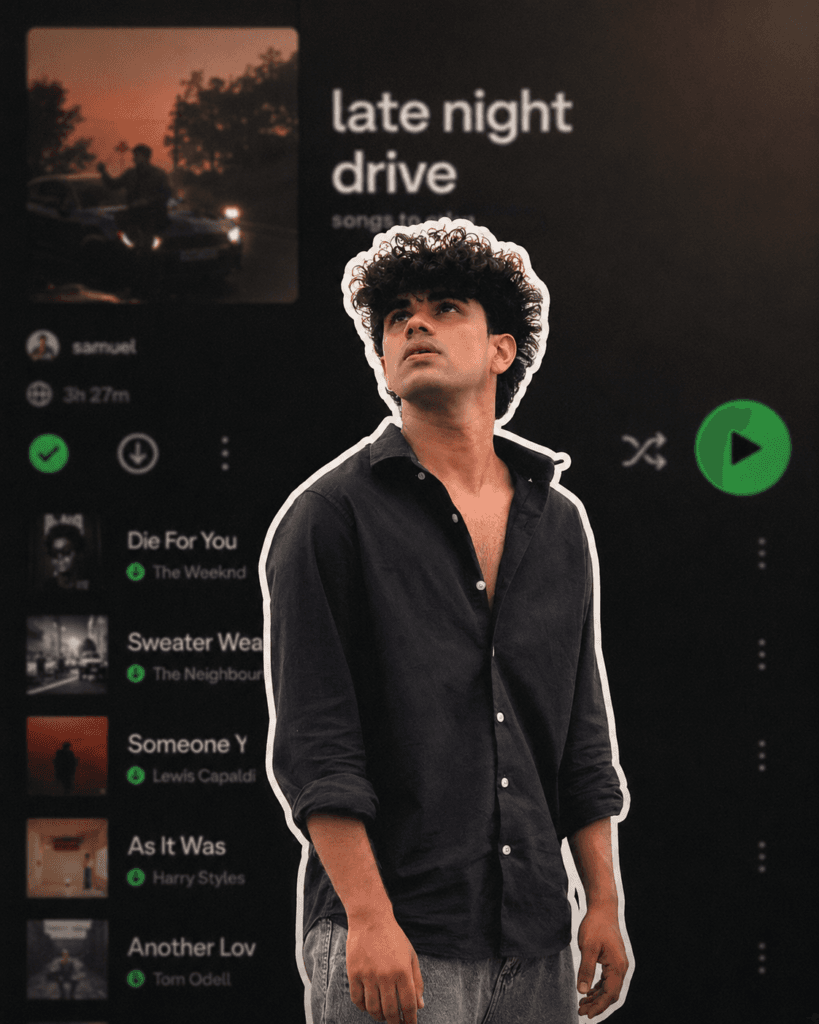
Use the uploaded reference image as
the exact reference. Preserve the
person's identity, facial features,
skin tone, hairstyle, pose, expression,
and body proportions exactly as shown.
Keep the clothing 100% identical to the reference image. Do not change the outfit, colors, patterns, fabric, accessories, or fit. Preserve every detail of the original clothing exactly as in the uploaded image.

Create a premium digital collage
style portrait. Cut out the subject
with a thick white sticker-like
outline, giving it a modern editorial collage look. Keep the pose natural and relaxed, with the person looking slightly downward with a calm, confident expression. If the reference image includes a hand near the face or clothing, preserve that naturally.

The background should be a
heavily blurred dark-mode
mobile music streaming app
playlist, creating a stylish
and modern aesthetic while keeping the focus entirely on the subject. Use soft ambient lighting, clean shadows, premium cinematic color grading, subtle film grain, high contrast, realistic skin texture, ultra-sharp details, HDR quality, and a minimal editorial design.

Ensure the face remains 100%
recognizable and matches the
uploaded reference perfectly.
Do not alter the hairstyle,
facial features, outfit, accessories, or overall appearance. The only transformation should be the digital collage effect, thick white sticker outline, and the blurred playlist background.

Ultra-realistic, Instagram
aesthetic, premium graphic
design, editorial quality,
realistic depth of field,
clean composition, 4K, HDR,
vertical 4:5 aspect ratio.
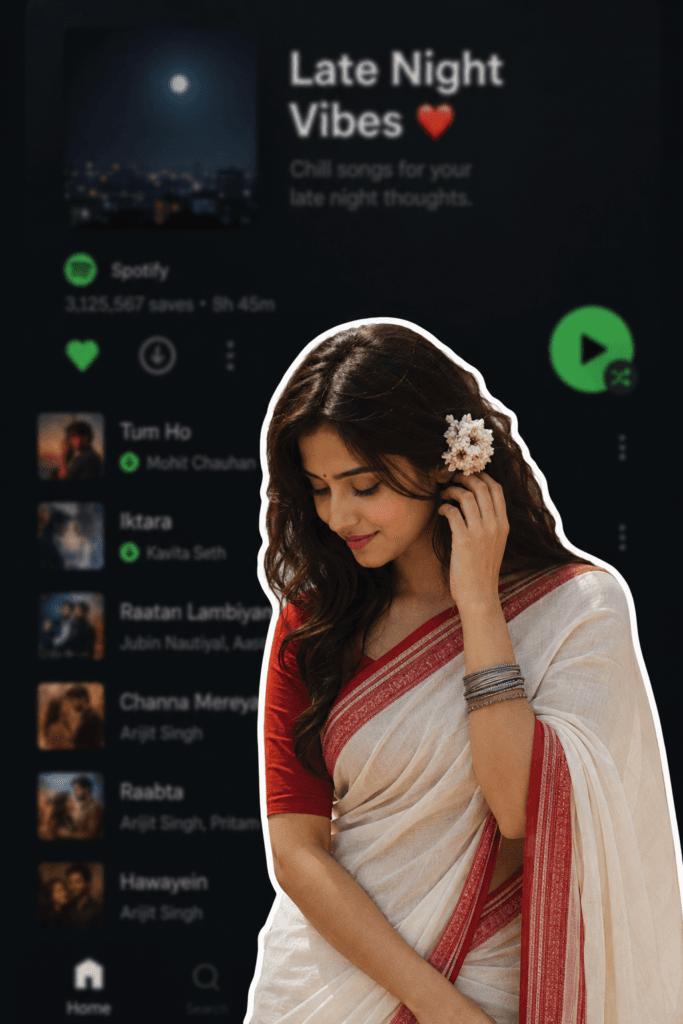
A digital collage style image. In
the foreground, a young South
Asian woman is cut out with a thick
white sticker-like outline. She
is wearing a traditional white
saree with a red border, a red
blouse, and silver bangles, with
a white flower tucked into her
long dark hair. She is looking
downwards with a soft, serene expression, gently touching her hair near her ear. The background is a heavily blurred, dark-mode screenshot of a mobile music streaming app playlist.
How To Use Spotify Playlist Background AI Photo Prompt ?
Now we will generate the photo of this Spotify playlist with the help of AI with the help of chat gpt ai. Before tomorrow, prepare a photo of yourself which is high quality and half photo would be better, use a photo which will look HD and there will be no face blur. Now we will open chat gpt, click on the plus option, click on the photo option and upload the photo. Now copy the prompt given by me and paste it in chat gpt. After that click on generate bottom. Now wait for some time then your Spotify playlist ai photo will be created. Once the photo is created, download it and save it in the gallery.
Conclusion
By generating this photo, you can also give status on Instagram. Add the song that is showing in the Spotify playlist to the status, it will look better. These photos are only for girls, if boys want to create this photo, you can edit it manually. In this article, I have told you 2 ways how to generate the photo. With the help of AI and with the help of PicsArt app. I will show you two ways so that you understand how to use them. If you have difficulty understanding the article, tell me in the comments and I will reply.
