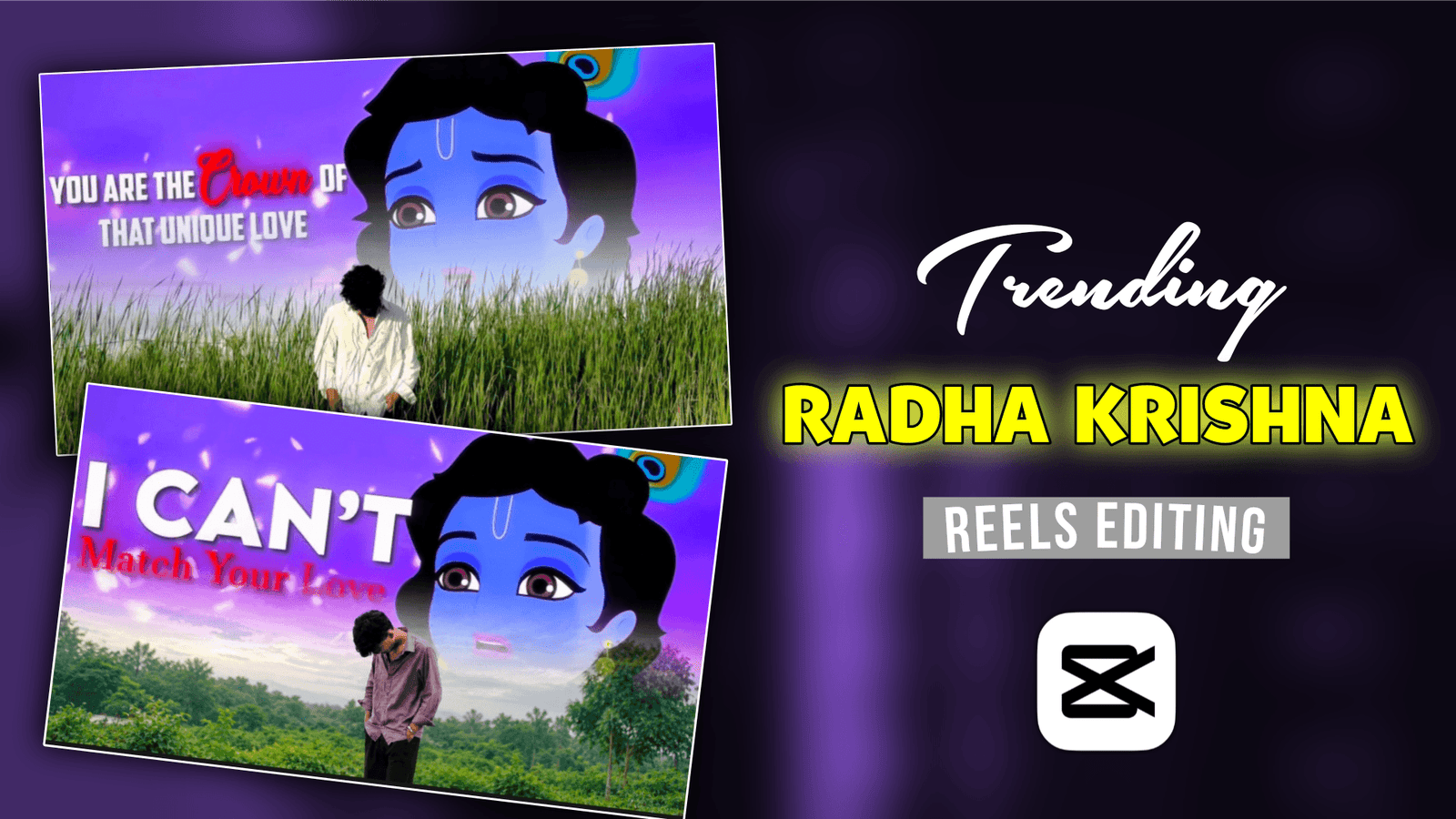
Trending Radha Krishna Video Editing –Friends, today I am not giving any AI photo editing prompt. Today I will give you a trading rails editing tutorial. Currently, Radha Krishna Video is going very viral on Instagram. Those who are posting this video are getting millions of views on their videos. If you are a new content creator or your Instagram page has very few views, then you can post this trading video and you will get more likes, comments and shares. There are many emotions in this video that the lyrics say that there are many emotions hidden in those lyrics. In today’s post, I will tell you how you will do this trending Radha Krishna Video Editing. If you also want to make this video, watch the article till the end.
Trending Radha Krishna Video Editing
No one knows yet that this Radha Krishna video is going viral. The reason why this video is going viral is because of the effects, color grading transitions added in this video which is going viral. The main reason behind this video going viral is this Radha Krishna video clip. You can see this kind of trending Radha Krishna video, we will use the Capcut app to edit this video. The lyrics of this video will be in Hindi. Even if your language is different, you can make this video, there is no problem. To create the video, first you have to shoot a photo. Click a photo in such a way that the sky is also visible. You will need another video and you have to download the video clip. Download the one that I have given below from there. After downloading, I will tell you how to edit the video in the paragraph below.
What Need To Create Trending Radha Krishna Video ?
Now let me tell you what you need to make this viral Radha Krishna video. First of all, we need a photo, you can click the photo in 2 ways. One, you can click it yourself with your mobile phone. And another, you can make a photo with the help of AI. To click a photo with a mobile, a guy will stand and click the photo in 16:9 ratio. And to create a photo with AI, we have to copy and paste a prompt and generate the photo with chat gpt. Now, lastly, we need a video clip, I have given the link, download it from there. Now let’s see how to make the video.
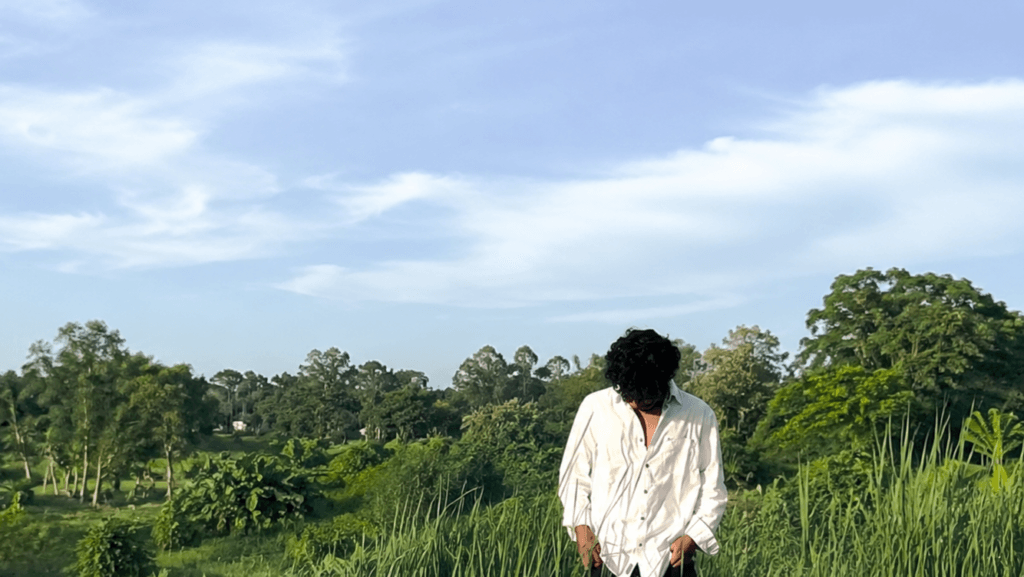
Use the uploaded photo as the exact identity
and subject reference. Create a photorealistic
16:9 landscape composition with the subject
naturally placed in the lower-right area,
preserving the face, identity, hairstyle, clothing,
pose, body proportions, and expression exactly.
Replace the background with a vast natural white
and pale blue cloudy sky occupying most of the
frame, with soft diffused daylight. Add lush
green vegetation, dense trees, distant greenery,
and a peaceful natural landscape along the lower
portion. Maintain realistic perspective, lighting,
shadows, depth, and seamless blending. Do not alter
the subject.
How To Edit Trending Radha Krishna Video Using Capcut?
Now I will tell you how you will create these trending reels. For that, first open the Capcut app and add the photo you clicked. Now click on the overlay at the bottom and add the same photo and fill the screen. Remove the background of this photo using the remove bg tools. After that, click on overlay again and add the video clip and adjust it upwards. Now click on the layer option and put the photo behind the video clip. Now use the mask tools to add a fade to the video. As long as the last video clip is large, increase the length of your photo accordingly. By doing these, your Radha Krishna video will be created.
Conclusion
If you can’t shoot photos perfectly, you can generate photos using the prompt I gave you. To generate photos, you have to open chat gpt and upload your photos and paste the prompt, then generate them, and then the same photo will be created. You can import it into Capcut and use it. And to download videos, click on the link, my telegram will open, there is a download button there, click on it and download it. I have told you in a very easy way how to create videos with Capcut. If you want, I could have made it with a template in one click, but it doesn’t work perfectly with a template. If you have difficulty understanding these editing steps, let me know in the comments.

Yuvraj swami